SSIS Email Connection Information for SMTP, IMAP, and POP3 connections.

Quite often when performing a demo, teaching, or building SSIS Packages I am using either SMTP, IMAP or POP3 connection information. Each time I have to find my own local document that has this information stored or I have to search the web, so I’ve decided to post the information here for my own convenience and perhaps yours as well!

If you have some providers you would like to add to this just email me at mpearson@pragmaticworks.com Thanks!

Note: Task Factory by Pragmatic Works offers three separate email tasks for use in SSIS. If you are interested you can learn more about Task Factory here: http://pragmaticworks.com/Products/Task-Factory

Yahoo Configuration Settings

SMTP

  • Mail Server:     smtp.yahoo.mail.com
  • Port:                465
  • Encryption:      SSL

IMAP

  • Mail Server:    Imap.mail.yahoo.com
  • Port:               993
  • TLS/SSL:       Yes

POP3

  • Mail Server:     pop.mail.yahoo.com
  • Port:                995
  • Encryption:     SSL

Gmail Configuration Settings

SMTP

  • Mail Server:      smtp.gmail.com
  • Port:                 587
  • Encryption:       TSL

Office 365 Configuration Settings

SMTP

  • Server name:     smtp.office365.com
  • Port:                  587
  • Encryption:        TLS

IMAP

  • Server name:    outlook.office365.com
  • Port:                 993
  • Encryption:      SSL

POP3

  • Server name:   outlook.office365.com
  • Port:                995
  • Encryption:      SSL 

Build notification framework to send SMS Text messages and Emails in SSIS!

Of the over 40 components in Task Factory the TF Advanced Email and SMS Task is one of my favorites. In this blog I am going to discuss the rich features this task offers and provide a walkthrough of setting this task up to send an email or SMS text message upon package failure.

If you like this blog and you want to try out a free trial of Task Factory you can find it here: http://pragmaticworks.com/Products/Task-Factory/TrialDownload

Feature Highlights

  • Supports Email and SMS messages.
  • Can send emails with attachments.
  • Inbuilt HTML editor for HTML email.
  • Allows use of variables as placeholders in the Email Body so variables can be automatically replaced when an email is sent!
  • Expressions can be set on properties to make the package dynamic.

Note: We will be using SMTP connection information to set up our email connection manager. Generally a basic Bing/Google search will return the connection information required. For example Yahoo SMTP Connection info or Gmail SMTP Connection info.

Ok let’s get started with our walkthrough.

  1. Please open up a new SSIS Package.
  2. Next click on the Event Handlers tab at the top.
    1. Don’t change the executable, by default it is set at the package level.
    2. Also leave OnError for the Event Handler.

image

  1. Next click on the hyperlink “Click here to create an ‘OnError’ event handler for executable ‘<Executable Name>’.

image

  1. Now pull in the Task Factory Advanced Email and SMS task.
  2. Next we will set up a new SMTP Connection Manager.
    1. Select the drop down box next to SMTP Connection and then select “Create New Email Connection”.

image

  1. On the general tab fill out the following information:
    • Protocol Type: (Must be SMTP)
    • Mail Server: (The Mail Server will differ by mail provider. I’m using Office 365 settings.)
    • User Name:
    • Password
  2. On the advanced tab fill out the following:
    • Server Port: (Once again changes per mail provider)
    • Type of encrypted connection: TLS, SSL or NONE
    • Timeout in Seconds: (Default is 60)
  3. Finally test connection to validate and click ok to close.

image

image

image

Setting up SMS Providers and Emails

In this section I will demo how easy it is to set up the component to send either an SMS or Email message. Note all of this can be set up dynamically using variables and expressions!

  1. Select the dropdown for “To:” and select either email or SMS. Here I selected email and then manually entered the email address.
    • Please note you can send emails to multiple recipients by separating them with a semi colon ;.

image

  1. Ok, next let’s override our email option and select SMS.
    • First enter the phone number.
    • Next select the provider (The “Provider” will be required for SMS messages.)
    • Finally select the add Icon, see screenshot below:

image

Dynamically set the body of the email and subject using expressions:

In this section we are going to use expressions for the body and subject of the email. Note that expressions can be set on virtually every property of this component.

  1. Select the “Expressions” tab found at the bottom left of the TF Advanced Email editor.

image

  1. From the properties window select “Subject” from the drop down.
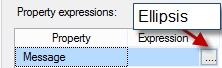
  2. In the “Expression” box select the Ellipsis button to open the expression editor.
  3. Here is where we can use the SSIS Expression language and variables to make our subject dynamic at run time. (See third Screenshot below)

image

image

image

  1. Once you have completed your expression for the Subject click ok and that will close the expression editor. Now from the properties window select “Message” and once again select the Ellipsis button to open the expression editor.

image

Now when I execute the package if an OnError event happens in the package and only if this event occurs then I will receive an email or text message!

Here is the email I received upon failure of the package, pretty cool!

image

Thanks for looking!

Get list of subfolders in SSIS with SSIS Script Task!

Recently I needed to get a list of subfolders in SSIS. I also only wanted to bring back a list of subfolders that had the date appended to the end. So let’s walk through how to do this in Script Task using c#.

image

First we need to create two variables in SSIS:

image

Next bring a script task into the control flow and open it up for editing.

  • Select C# for the script language.
  • ReadWriteVariables select objDirectoryList

image

Now select Edit Script

  • Under the section “public void Main()” enter the following code:
    • Of course replace the directory location with your directory.
Dts.Variables["objDirectoryList"].Value = 
       System.IO.Directory.GetDirectories(@"C:\Blogs\RootFolder\","*20*",AllDirectories);
Dts.TaskResult = (int)ScriptResults.Success;
        }

        public SearchOption AllDirectories { get; set; }

Essentially all I’m doing here is populating the object variable objDirectoryList with all the subdirectories in the folder C:\Blogs\RootFolder\. Notice that I have also added a filter here “*20*”. If you do not wish to have a filter and  you want to bring back all subdirectories then just replace my filter with “*”.

Finally we can now iterate through this object variable in a FELC.

image

Below you can see the two directories that are returned from the script task above.

image

image

Thanks for looking, hope this helps.

How to use the Optimize For hint to force the execution plan you want.

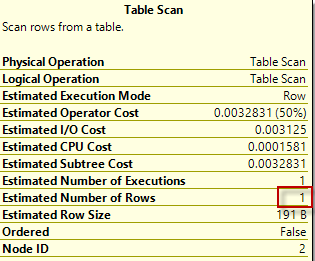
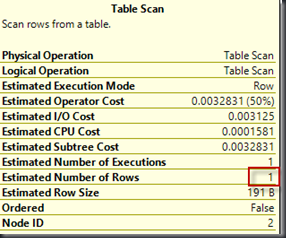
Quite some time back I found myself fighting with an Execution Plan generated by SQL Server for one of my stored procedures. The execution plan always returned an estimated row of “1” when processing for the current day. I won’t go into details on why this one specific stored procedure didn’t use the older cached plans as expected. I will however tell you like most things with SQL Server there is more than one way to solve a problem Smile.

This method is something I have personally wanted to blog because it’s something I have only used a handful of times when I just couldn’t get the execution plan to work the way I wanted it to. Note that using this hint we are forcing the SQL Server Optimizer to use the statistics for the specific variable value that we provide. However if the table was to grow significantly in the future we may be hurting performance by forcing a bad execution plan and that is a drawback to using this hint, so now you know!

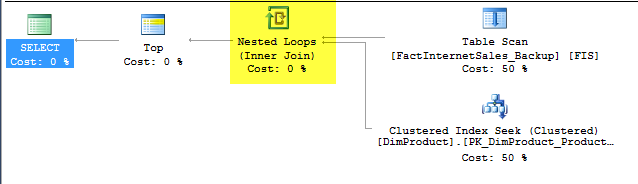
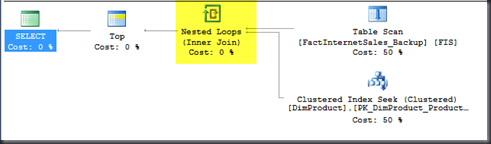
Take a look at the two screenshots below. The first is the estimated rows from the Fact Internet Sales table and the second is the estimated execution plan.
image

image

What I actually want to see for this execution plan is HASH MATCH. This will perform significantly better for the number of records that I will have. Unfortunately due to out of date statistics I’m getting a bad plan.

So let’s note two things.

  1. First, in most situations the best solution here is to simply update statistics. This should be part of ANY database maintenance plan.
  2. Second, The example I am using here is not great. I am simply forcing the plans to do what I want for demo purposes.

Let’s take a look at the original query:

DECLARE @ShipDate DATE = '1/1/2008'

SELECT 
       [EnglishProductName] AS Product
      ,[SalesOrderNumber]
      ,[OrderDate]
      ,[DueDate]
      ,[ShipDate]
  FROM 
    [dbo].[FactInternetSales_Backup] FIS
  JOIN
    [dbo].[DimProduct] DP
  ON
    DP.ProductKey = FIS.ProductKey
  WHERE ShipDate > @ShipDate

Now we are going to modify this query quickly to use the Optimize For hint. This hint is going to allow us to optimize our Execution Plan in SQL Server using the specified parameter. In my instance this is going to be a previous date where I know the statistics are reflective of what I want to see in my execution plan.

Here is the modified query:

DECLARE @ShipDate DATE = '1/1/2008'

SELECT 
       [EnglishProductName] AS Product
      ,[SalesOrderNumber]
      ,[OrderDate]
      ,[DueDate]
      ,[ShipDate]
  FROM 
    [dbo].[FactInternetSales_Backup] FIS
  JOIN
    [dbo].[DimProduct] DP
  ON
    DP.ProductKey = FIS.ProductKey
  WHERE ShipDate > @ShipDate

  OPTION (OPTIMIZE FOR (@ShipDate = '1/1/2005'))
GO

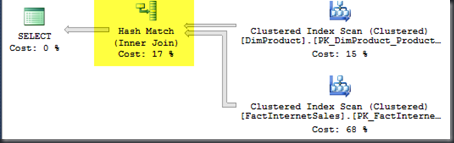
In this query the result set returned will still be for the original value of the variable “1/1/2008’. However the SQL Server optimizer is going to generate the plan using the OPTIMIZE FOR hint that we provided. (Highlighted in Yellow).

Now let’s take a look at our new Estimated Execution plan:
image

This time we are getting a Hash Match which is much more applicable for our table and the number of records that will be queried.

As always, Thanks Smile

The transaction log for database is full due to ‘REPLICATION’. “Replication not enabled.” CDC

Welcome to Monday Morning Madness. What do you do when your Transaction Log runs out of space? Let me share my most recent experience.

My transaction log had a hard limit of 2TB in size. There are different opinions out there among the DBA elite on whether you should have a limit on the growth of your transaction log or if you should leave it as unlimited. As a BI Developer I do not have an opinion here, just note that I am happy that in this instance I had a hard limit.

The Error Message:

The transaction log for database <Database Name> is full due to ‘REPLICATION’.

Oh that’s it?? Easy fix right. Let’s walk through troubleshooting this problem.

  • My database is in SIMPLE recover mode, so why is it waiting to checkpoint?
  • I run the following command to find out the reason the log is waiting to clear.
USE master;
GO
SELECT name, log_reuse_wait_desc, * FROM sys.databases
WHERE name = '<Database Name>';

image

Replication, really? Who turned on REPLICATION!!?? I had no idea replication was turned on. Let’s find out.The following code will show if replication is turned on for any of my databases:

SELECT name, is_published, is_subscribed, is_merge_published, is_distributor
FROM sys.databases
WHERE    is_published = 1 or is_subscribed = 1 or
        is_merge_published = 1 or is_distributor = 1
      Ok so here is my result set from the above query:

image

  • So to recap, the transaction log is not purging itself because of a long open transaction due to replication but replication is not turned on?? DBCC OPENTRAN will show open transactions.

Well after some further research I discovered that my Change Data Capture job had failed. More specifically the CDC_Capture job. We turned on CDC to capture some otherwise hard to capture changes. The way CDC works is it crawls the transaction log and once it has completed with a section of the log that part of the log can then be cleared and reused. In my case CDC job failed and as a result none of the transaction log was being allowed to clear.

Note: By default when you enable CDC it will create two jobs. One that captures the changes and the other that cleans up the tables where the changes are stored. The schedule to run these jobs is configured to ONLY start upon starting of SQL Agent. I would recommend modifying the scheduling of this job.

So finally we discovered the problem. Now how do we fix this?

  1. First try turning on the CDC Capture job. (This doesn’t work because the transaction log is full.)
  2. Try shrinking the database. (Well this won’t work for two reasons. One transaction log is full, secondly because there is no free space to shrink.)
  3. Third you can try changing the max limit on your transaction log. Bet you can’t guess what happens when you do this? This doesn’t work because the transaction log is full.

None of the above situations will work here because they all require at least some space on the transaction log to complete.

  1. Ultimately I ended up creating a new transaction log on my database.
    1. This is why I was glad my original transaction log had a “Hard” limit. If there was no hard limit then I ultimately would have completely run out of space on my disk and I would not have been able to simply create a second transaction log.
  2. Once the new transaction log was in place I then disabled CDC on the database. I disabled it because the client was no longer using it. Alternatively I could have turned on the job and just let it crawl the entire transaction log, all two TB Smile.
  3. Once CDC was disabled I ran the following checkpoint command to checkpoint and clear the transaction log. (See below).
  4. Once the transaction log was cleared I ran DBCC SHRINKFILE (DatabaseName_LOG) to reclaim the empty space.
  5. Finally I deleted the backup transaction log from above!
    1. In general having more than one transaction log can hurt performance. I added the additional transaction log temporarily and once it was no longer needed I removed it.
  6. USE <DatabaseName>;
    GO
    CHECKPOINT;
    GO
    CHECKPOINT; -- run twice to ensure file wrap-around
    GO

As Always thanks for looking!

SSIS Performance Tuning the For Each Loop. Retain Same Connection.

With the Retain Same Connection property I was recently able to more than double the performance of my SSIS package for a client. The package was looping over hundreds of thousands of files and logging the file names into a table to be later processed.

Retain Same Connection is a property setting found on connection managers. By default this property is set to false which means that each time the connection manager is used the connection is opened and subsequently closed. However in a situation like mine this can significantly degrade overall performance as the package has to open and close that connection hundreds of thousands of times. In this blog I’m going to set up a very basic example and walk through setting up this connection manager.

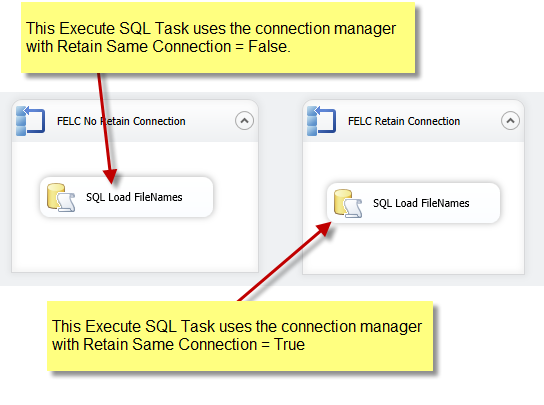
Here I have set up two connection managers. Both connection managers point to the same database. It’s important to note that if you are using Project Level Connection managers in SQL 2012 that setting this property inside any one package will persist across all packages. Therefore I create two connection managers.

image

Inside the package I am simply using a for each loop task to loop through a list of files in a directory and then I load the file names into a table using an Execute SQL task. For demo purposes I have two examples in one package.

image

  1. The FELC on the left takes 30 Seconds to run.
  2. The FELC on the right takes 11 Seconds to run.

Let’s now discuss how and where we can set this property.

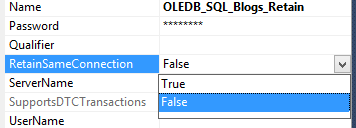
Right click on your connection manager found in the connection managers pain inside the package and select Properties.

image

Inside the properties window find the property “RetainSameConnection” and set the value to “True”. Now the connection will remain open for the duration of the package.

image

As always thanks for looking!

Download Emails and Email attachments in SSIS.

Ever need to download emails and attachments using SSIS? If so you have come to right the place. Task Factory, a suite of custom SSIS components by Pragmatic Works has a component called the Email Source. The component supports both POP3 and IMAP and is really easy to set up, so let’s get started!

There is also full support for filtering messages based on sender, message to, subject, date received, body and priority.  This way you can filter down to only the messages you want to load.

If you are one of the poor unfortunate souls that don’t yet have Task Factory you can give it a try with a free trial download here: http://pragmaticworks.com/Products/Task-Factory

Walkthrough:

  1. Create a new package and bring in a data flow task.
  2. Inside the Data Flow Task pull in the TF Email Source component.
  3. Open the TF Email Source. Once open we need to create our connection manager. You can choose between POP3 or IMAP for reading emails. I prefer IMAP because it allows you to choose specifically what folder in your email you want to read from. More on this later.
  4. image
  5. On the general tab of the connection manager fill in the following items:
        1. Protocol Type
        2. Mail Server
        3. User Name
        4. Password
  6. image
  7. On the advanced tab of the connection manager fill in the following items:
        1. Server Port
        2. Encrypted Connection
        3. Root Folder Path (Directory to read from)
  8. image
  9. Click ok to close out the connection manager.
  10. Next select the location to save attachments. “Attachments Directory”
  11. I created a variable to store the message ids in. I won’t be using this object variable in this blog.
  12. Finally if we want to add a filter we can do that below as well.
  13. image
  14. Now simply connect the email source to a destination component.

Does cube partition exists? Script task in SSIS explained!

The first necessary step in dynamically creating cube partitions is to determine if the partition already exists. If the partition does not exists then we create the partition, if it does exists we simply process the existing partition. Recently I gave a free webinar online at PragmaticWorks.com and a few of the attendees wanted more details on the script task I used, so here we go. It’s also important to note that I used a daily partitioning strategy for the webinar. This is important because the naming conventions of my partitions included the partition name and date that I used as a filter. For example:

image

In this blog post I will walk you through step by step setting up this script task. Please see below. First the setup:

  • Create the following variables, if you are in 2012 or 2014 create these as package parameters. We will use these parameters to establish our connection to Analysis Services and then build out the partition name dynamically.
    • image
  • Now we need to create another variable, this variable will be used in our control flow to determine if we should create the partition or process the partition, we will get to this part in a bit.

image The Script Task: (Setup) Now that we have created our variables and have that part set up we are going to build our script task.

  • Step 1) Drag a script task component from the toolbox into your control flow.
  • Step 2) Open the task for editing and choose C# as the script language.
  • Step 3) ReadOnlyVariables: Select all the variables from Step 1 in the setup section.
  • Step 4) ReadWriteVariables: Select the variable intDoesPartitionExists
  • Step 5) Finally, click the Edit Script button.

The Script Task: (Code)

  • Step 1) Add the Microsoft.AnalysisServices reference.
          1. From the solution explorer right click on references and select “new reference”.
          2. From the Add Reference window select .NET tab
          3. Find and select Analysis Management Objects and click ok.
    • Step 2) Add Microsoft.Analysis Services as a namespace. Screenshot below:
      • image
  • Step 3)  Finally we can add our code. In this section we are going to use the parameters previously created to connect to our cube and then check to see if a partition exists. For this blog we simply hardcoded these values for demonstration purposes but typically we would set these values dynamically. If the partition exists I populate the variable intDoesPartitionExists with a value of 1 for True. If the partition does not exists I populate it with the value of 0 for false. I then use this variable in the control flow to determine whether to process or create partitions.
  • Step 4) Find the section titled “public void main() and paste the following code where it says Add your code here
// TODO: Add your code here

            string serverName = "";
            string databaseName = "";
            string cubeName = "";
            string measuregroupName = "";
            string partitionname = "";
            string Date = "";


            //Retrieve the server, database, cube, etc. details from the variables
            serverName = Dts.Variables["ServerName"].Value.ToString();
            databaseName = Dts.Variables["DatabaseName"].Value.ToString();
            cubeName = Dts.Variables["CubeName"].Value.ToString();
            measuregroupName = Dts.Variables["MeasureGroupName"].Value.ToString();
            partitionname = Dts.Variables["MeasureGroupPartitionName"].Value.ToString();
            Date = Dts.Variables["Date"].Value.ToString();

            //Build the connection string
            string ConnectionString = "Data Source=" + serverName + ";Catalog=" + databaseName + ";";

            //Connect to the server and select the database, cube, etc.
            Server srv = new Server();
            srv.Connect(ConnectionString);
            Database db = srv.Databases.FindByName(databaseName);
            Cube cb = db.Cubes.FindByName(cubeName);
            MeasureGroup mg = cb.MeasureGroups.FindByName(measuregroupName);

            if (mg.Partitions.ContainsName(partitionname + "_" + Date))
            {
                Dts.Variables["intDoesPartitionExists"].Value = 1;
            }
            else
            {
                Dts.Variables["intDoesPartitionExists"].Value = 0;
            }

            srv.Disconnect();
            srv.Dispose();

You can find my webinar on Processing SSAS with SSIS at the following link: http://pragmaticworks.com/Training/FreeTraining/ViewWebinar/WebinarID/1714 Thank you for looking!

Processing SSAS Cubes with SSIS –Q & A

For those of you who attended my webinar on Processing SSAS cubes with SSIS, thank you! For those of you who didn’t the video is still available here: http://pragmaticworks.com/Training/FreeTraining/ViewWebinar/WebinarID/1714.

Below are a few of the questions I received in the webinar. There will be a couple of follow up blogs for the more detailed questions.

Q: Can you please share the script used to generate the partitions?

A: I will post a follow up blog in the next couple of days with step by step instructions. Sharing my exact script would not be helpful. I will update this post with the additional blog.

Q: How are you stopping through your SSIS Steps within package execution?

A: Breakpoints! I used breakpoints to pause the package during execution so I could explain exactly what was going on. To enable breakpoints on a task inside SSIS you simply right click on the task and then select edit breakpoints. I showed this at the end of the webinar during Q&A.

Q: What are our best logging options if we do all of our cube processing with script tasks instead of the native components?

A: Your best logging options are going to be setting up a Profiler Trace or Extended events. I briefly explained setting up a trace at the end of my webinar.

Q: Does the C# script task need the connection string information to query SSAS for the partition information?

A: Yes. In my webinar I showed how to dynamically create partitions for your cube inside of SSIS. Before creating them I used a script task to see if the partition already existed. I have posted a follow up blog below:

https://mitchellsql.wordpress.com/2014/11/18/does-cube-partition-exists-script-task-in-ssis-explained/

Q: How are the aggregation designs handled on the dynamic partitions?

A: This is handled in the XMLA by specifying the Aggregation ID. I showed this at the end of my webinar during the Q&A section and I will also include this in a follow up blog on creating the XMLA for dynamic partitions.

Q: Is this applicable to tabular cube processing?

A: Yes. The analysis services processing task processes tabular models, cubes, dimensions, and mining models.

Once again thank you for attending our free webinar. Until next time!

Quickly encrypt and decrypt files with the TF PGP task for SSIS!

Business Problem

I recently had to help a client with encrypting a file before uploading that file to an FTP. Thanks to the PGP task in Task Factory we were able to fulfill this requirement in a matter of minutes.

Walkthrough

In this example I will walk you through quickly creating public and private keys and then using those keys to encrypt the file.

    1. Create two variables. One for the source location and one for the destination:
    2. image
    3. From the SSIS Toolbox drag and drop the PGP Task into the control flow and then open it for editing.
    4. For “What action will this perform?” choose Encrypt File.
    5. Click Generate Key to create your own public and private keys. Note: Public keys are used for encryption and private keys are used for decryption.
    6. image
    7. Now to fill out some basic information. The private key created will require a password, please remember to store this password somewhere safe, i.e. some kind of password vault. This will be required to decrypt files.
    8. image
    9. Now that we have generated PGP keys we can now encrypt our files in just a couple steps. A screenshot of all steps below is listed at the bottom.
    10. For Section 1:
      1. Select “File location is stored in a variable”
      2. Select “strFileName” for the variable
    11. Section 2:
      1. Select “Destination location is stored in a variable”
      2. Select “strFileName_Encrypt” for the variable.
      3. Select the checkbox for Overwrite the destination file if it already exists
    12. Section 3:
      1. Select connection manager: Select “Public”.
        1. Note: The connection manager “Public” was added to the package automatically when we generated new keys. Public is the name I gave to my public key ring.
      2. Finally select the Public Key you wish to use for encryption. We only have one key on our key ring.

I have provided three screenshots below.

    1. Screenshot 1 – Final Configuration
    2. Screenshot 2 – File before PGP Encryption
    3. Screenshot 3 – File after PGP Encryption

Screenshot of final configuration:

image


image


As always thanks for looking and your feedback is appreciated!