In the next few posts of my Azure Data Factory series I want to focus on a couple of new activities. Specifically the Lookup, If Condition, and Copy activities. The copy activity in this pipeline will only be executed if the modified date of a file is greater than the last execution date. In other words, the copy activity only runs if new data has been loaded into the file located on Azure Blob Storage. The following diagram provides a visualization of the final design pattern.
- Check out part one here: Azure Data Factory – Get Metadata Activity
- Check out part two here: Azure Data Factory – Stored Procedure Activity

Setting up the Lookup Activity in Azure Data Factory v2
If you come from an SQL background this next step might be slightly confusing to you, as it was for me. For this demo we are using the lookup activity to execute a stored procedure instead of using the stored procedure activity. The reason we are not using the stored procedure activity is because it currently does not produce any output parameters and therefore the output of a stored procedure can not be used in the pipeline. Maybe this is something that Microsoft will add as functionality in the future, but for now the lookup activity will get the job done!
- First, I am going to drag the Lookup activity into the pipeline along with the Get Metadata activity from the previous blog posts.
- In the properties window I changed the name of the task to “Get Last Load Date” to make it more descriptive.

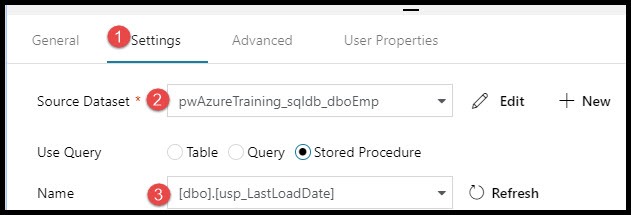
- After the name has been assigned from the previous step, select the Settings tab.
- Choose a “Source Dataset”. A dataset must be selected even though we are not returning the results from the selected dataset. We are going to return results from a stored procedure. I have chosen a dataset that links to my Azure SQL DB where my control table and stored procedure current exist.
- Finally, click the radial button for Stored Procedure and then choose your stored procedure from the drop down list.
The stored procedure referenced in the previous step is a very simple stored procedure that is returning the last ExecutionDate from my Control Table. Keep in mind that this code would typically be a little more robust as this control table would have many rows for many different sources. For this blog I have kept the code simple to demo the functionality of the lookup task. Take a look at the stored procedure code below:

Now that the lookup component has been configured it’s time to debug the pipeline and validate the output results of our activities.

After a successful run you can validate the output parameters by clicking on the buttons highlighted in the below image, this was explained in more detail back in the first post of this blog series.

In the next blog in this series I will outline how to use the output parameters from these activities using the If Condition activity. Thanks for reading my blog!
 Mitchellsql